

- 1
Create your shop
Sign up as a water supplier with your shop name, city and mobile number. Nothing to send us, nobody to wait for.
A minute, free. - 2
Set your rates
Name a rate for each kind of address you serve — a ground-floor house and a third-floor flat are two different jobs. Every delivery prices itself from the one that customer is on.
Before your first round. - 3
Add your customers
Name, number, address and area. Set when they are billed and which days you deliver, and the round plans itself.
Two minutes a house. - 4
Deliver and get paid
Log the drop at the door. The receipt goes out by SMS, the bill goes out when the cycle ends, and the payment comes back to you to confirm.
Two taps per house.
Signing up
There are two kinds of account and one sign-up page. You pick which you are on the first screen, and nothing else about it is different.
If you sell water
- 1Tap Sign up and choose "Water supplier". Free, no card, nothing that expires.
- 2Enter your shop name, city and shop phone, then your own mobile number and a password.
- 3Your mobile number is your username — use the one you keep.
- 4Set up your rates under Delivery rates before the first round, so every delivery prices itself.
- 5Install VodaBook on any Android phone, sign in, and the same shop is there.
If you buy it
- 1Tap Sign up and choose "Customer".
- 2Give your name, mobile number, the area you live in and the address the bottles come to.
- 3Your mobile number is your username here too.
- 4Tap "Request water delivery". That is the only thing you need to do.
How a house and a shop get connected
Two paths, and most shops use the second. Whichever way it happens, the end state is the same: one customer record, one supplier, and both sides looking at the same arrangement.
1 · The customer asks
- CustomerSends one request
They do not choose a shop and they do not see a price list. One button — "Request water delivery" — with their area and address on it.
- VodaBookFinds the supplier
The request arrives unassigned. We match it to a shop that covers that area and pass it on. A household never has to work out who delivers where.
- SupplierPrices it and accepts
The shop sees the request in Requests, picks which of its rates this address is on, and accepts. That is the moment the customer record is created.
- BothAre told
The customer gets a push and a message saying who supplies them and at what rate. From then on the bottles just come — there is nothing to request again.
A customer never browses shops or compares prices in the app. They ask once, we route it, and the shop that takes it sets the rate. One supplier at a time — a house already being supplied cannot be picked up by a second shop.
2 · The shop adds them
- SupplierAdds the house
Name, number, address and area, on the app at the doorstep or on the web at the desk. Everything else on the form has a sensible default.
- VodaBookOpens an account for them
The number gets a VodaBook account and an SMS with sign-in details. If that number already has one, it is linked rather than reset — nobody is locked out of their own account.
- CustomerSigns in, or does not
Everything works either way. A household that never opens the app still gets an SMS receipt for every delivery and an SMS when the bill is due.
What a customer record holds
This is the thing the round and the bill are both built from. Only the first three are needed to save one — everything else has a default you can come back to.
- Name and phone
- The number is their username and where every receipt goes. Names are capped at 20 characters and cannot contain digits, so a row never turns into a paragraph.
- Token ID
- Your own reference for the house — a token book number, a meter tag. Optional, and yours alone.
- Area
- From the same list the customer picks from, so a shop and a household never describe the same place two ways.
- Delivery rate
- Which of your rates this address is on. Change it and the customer is told — a price change is the one thing nobody should learn from an invoice a month later.
- Billing cycle
- Monthly, weekly, every two weeks, or dates you set. Monthly unless you say otherwise.
- Deliveries per week, and which days
- Tick the days and set the time the house expects you on each. This is what you agreed — it does not record a delivery.
- Bottles at the house
- How many of your bottles are there, and how many the customer already owned.
- Bottle deposit
- What they paid against your bottles. Recorded only — never added to a bill, a balance or an SMS total.
Your customer sees this same record on their own account, so there is never a version of the arrangement only one side can see. Change the delivery days and they are told; change the rate and they are told.
How your rates work
Nothing in VodaBook asks anybody to type an amount at a doorstep. Every total is bottles × the rate that customer is on, and you set the rates once.
- Every rate has a name
- Ground floor, Apartment floor 3, Office. A shop prices by where the bottle is carried to, so the rate is named after the job rather than the number.
- Two shapes
- A bottle price plus a delivery charge — PKR 50 + PKR 20 bills PKR 70 a bottle, and the receipt shows the breakdown. Or one fixed price per bottle, if that is how you sell.
- A customer sits on a rate
- Not a price typed onto them. Move a house to a different rate and the next delivery prices itself; you never re-enter a figure.
- One is your default
- New customers get it unless you pick another, so adding somebody in a hurry is never wrong — only unspecific.
- Written where you need it
- The rate for an address is decided while you are typing the address. You can create a new rate from the Add customer form without losing the half-filled form you are standing in.
- Changing one tells the customers on it
- A push and a line in their conversation, naming the old rate and the new. A price change is the one thing nobody should discover on an invoice four weeks later.
Past deliveries keep the price they were charged at. Raise your rates tomorrow and last month's invoices still say what you actually charged — an old bill never changes under you.
How billing works
Every customer is on a cycle. When that cycle ends, VodaBook adds up what was delivered in it and sends the bill — you do not run anything.
Weekly and fortnightly are fixed lengths: pick the start and the end works itself out. Change either date and it becomes a custom period, because a week that is not seven days is not a week. The form always tells you the date the bill will actually go out on.
A bill for anything shorter than a month names its dates — Bill 8 Sep – 14 Sep: 5 bottles, Rs 350 — because a weekly customer cannot be told "Bill September" four times in a month.
How payment works
VodaBook does not hold money and does not move it. The transfer happens between your customer and your bank exactly as it always did — what this does is make sure both of you agree on what was sent, and when.
- 1The bill goes out
When the cycle ends — month end, or the last day of that customer’s own period. It arrives three ways at once: an SMS, a notification, and a message in the conversation with your bank details on it.
- 2They send the money
To whichever of your accounts they choose. Your accounts are on their Pay screen, so nobody has to ask where to send it.
- 3They tell you they have paid
Amount, transaction ID and a screenshot of the receipt — all three required. Reporting a payment settles nothing on its own; it is a claim, and the app says so.
- 4You check your statement
The payment is waiting in Billing with the screenshot attached. Mark it Received, or Not received with a reason.
- 5They are told either way
Received settles the month. Not received unlocks the payment so they can correct the reference and send it back — the same row, not a second one, so one transfer never counts twice.
Only the shop can settle a month, because only the shop can see its own bank statement. Until you confirm it, a reported payment reads as waiting — which is exactly what it is.
How the balance works
Four figures, and they are the same four on your Billing screen and on your customer's Pay screen. Neither side is looking at a different sum.
- Charged
- Everything delivered, as billed. The larger of what has been invoiced and what has been delivered — bills are only written when a cycle closes, so counting invoices alone would treat the running month as free.
- Received
- Only what you have confirmed. A payment you have not found yet is still a claim, and showing it as paid would tell somebody they were square while you thought otherwise.
- Outstanding
- Charged minus received. What the customer still owes, across every month rather than one at a time.
- Credit
- What is left when somebody pays more than they owe. It is held for them and comes off the next bill automatically — overpaying in August pays for September.
The customer also gets a month-by-month history with the balance carried through it, so "Rs 120 in credit" in July becomes "Rs 90 owed" in August without anybody doing arithmetic. Your Billing table shows the same outstanding per customer, so chasing is a list rather than a hunt.
Working with employees
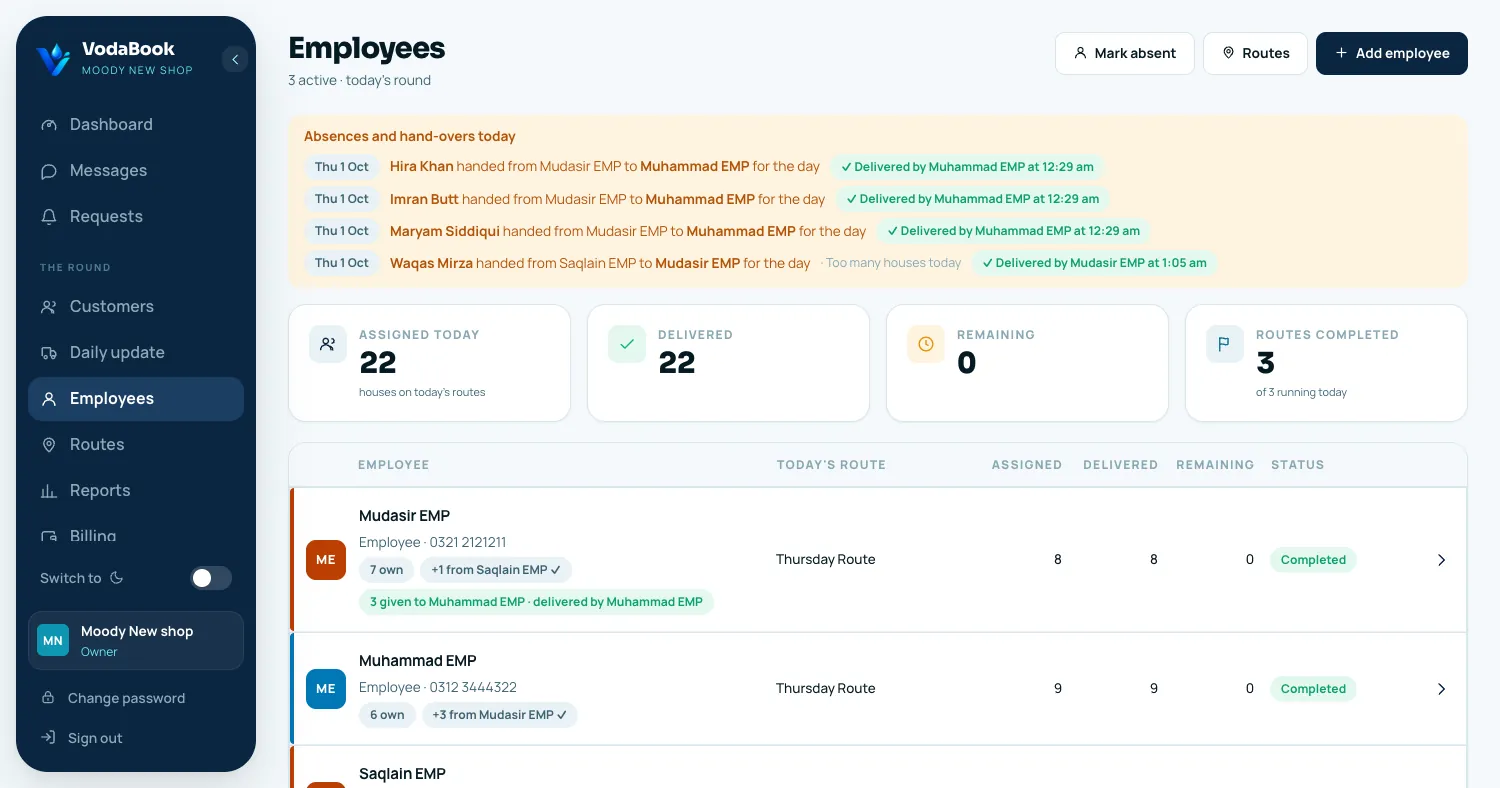
If other people carry the bottles for you, give each of them an employee account. They log the deliveries; you decide who goes to which house on which day, and you see every drop as it happens. Nothing about your customers or your billing changes.
1 · Add an employee
- 1Open Employees and press Add employee. On the phone: Home → Employees → Add employee.
- 2Enter their name, their own mobile number and a password for them. That is the whole form.
- 3Give them the number and the password. Employees never sign up themselves — only you can create their account.
- 4They sign in on the VodaBook app (or the website, with the "Employee" door on the sign-in page) and see only their own round.
2 · Give them their days and houses
Every customer already has delivery days (Monday, Wednesday…). A route is one day's list of houses, and each house on it is given to one employee. Set it once — it repeats every week.
- 1Open Routes and pick the day — Monday, Tuesday… A route is simply one day’s list of houses. Make one with New route, for example "Monday Route".
- 2Press Add houses. "Select all Monday customers" ticks every customer whose delivery days include Monday, so you rarely tick one by one.
- 3Choose who gets them in "Give to", or add them first and press Divide equally to split the houses evenly between the employees you pick.
- 4Do the same for each day you deliver. It repeats every week — you set it once, not every morning.
- 5Prefer to start from the person? Open the employee and press Give another day: pick the day, then the houses.
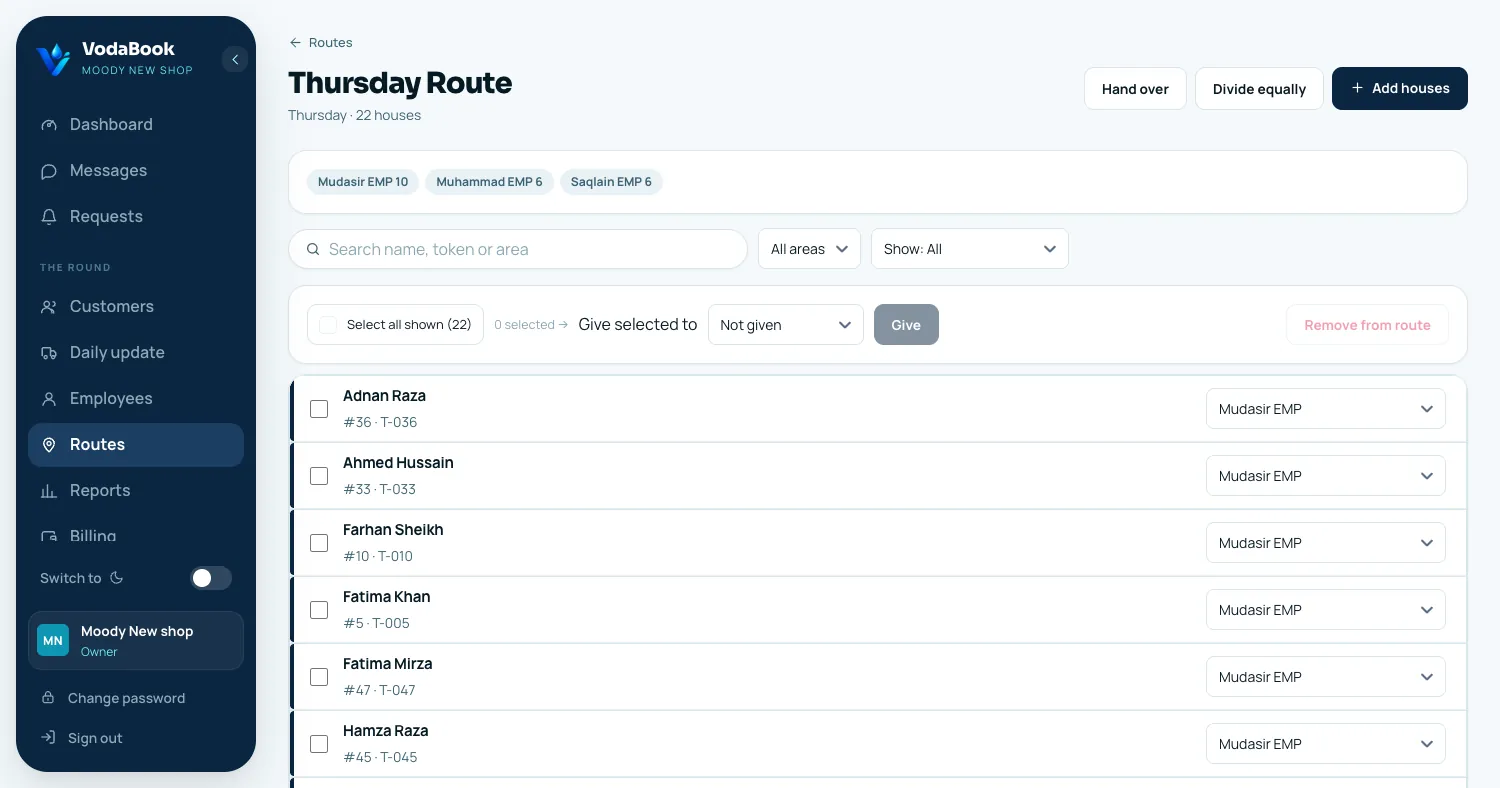
A house can be on one route per day, with one employee. A customer with no employee on a day shows under "Needs someone" on the Routes page, so nobody is forgotten.
3 · The day itself
- EmployeeOpens Today’s route
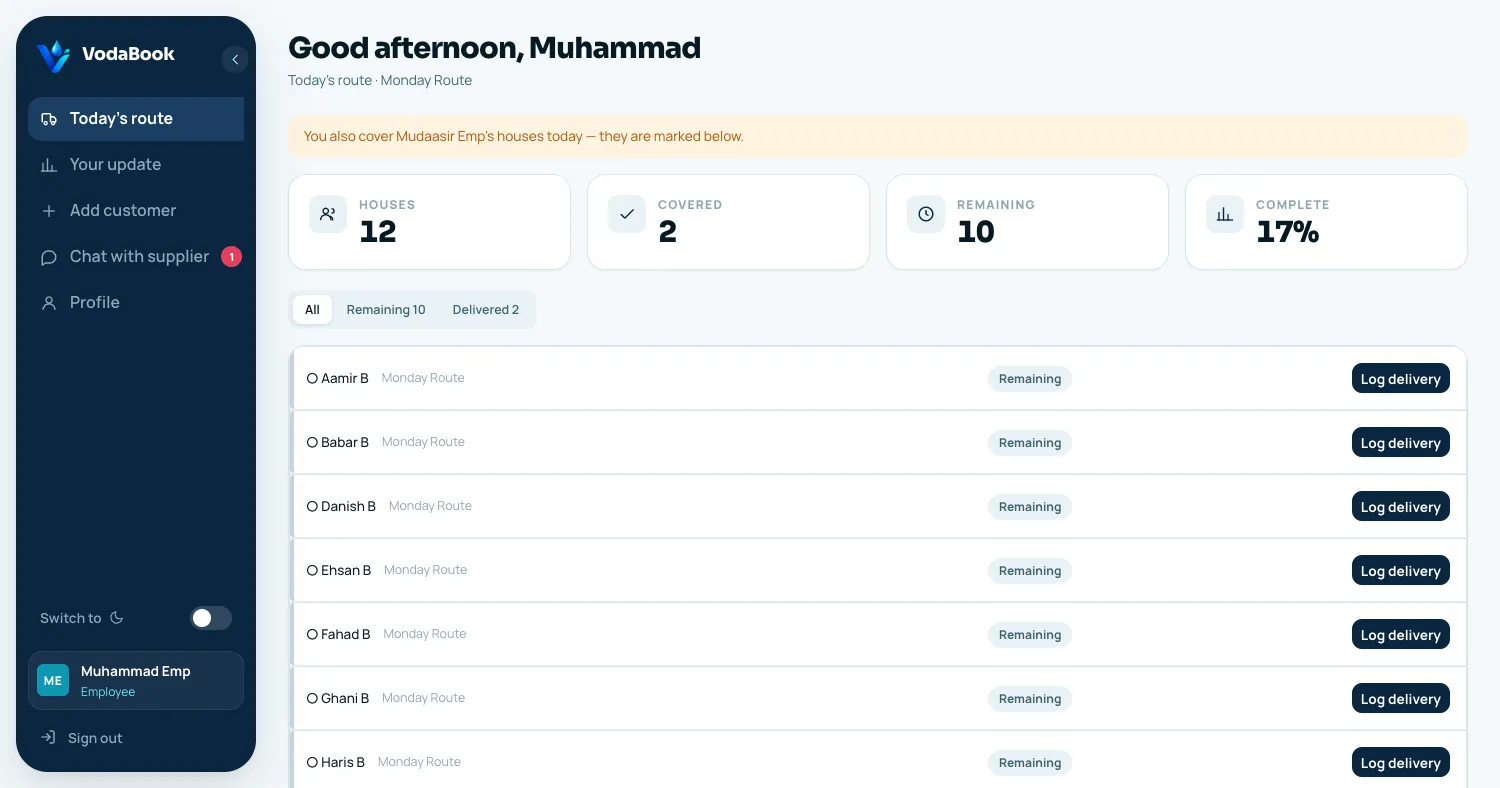
A list of names for today only — no prices, no phone numbers, no money. Each house shows Remaining until it is done.
- EmployeeLogs each drop
Tap the name, enter bottles given and empties collected, save. The customer gets the normal SMS receipt straight away.
- SupplierWatches it live
Employees shows every employee’s progress — assigned, delivered, remaining — and a push arrives for each delivery. Daily update has the whole day in one list.
4 · When the day does not go to plan
- Someone is off for a day
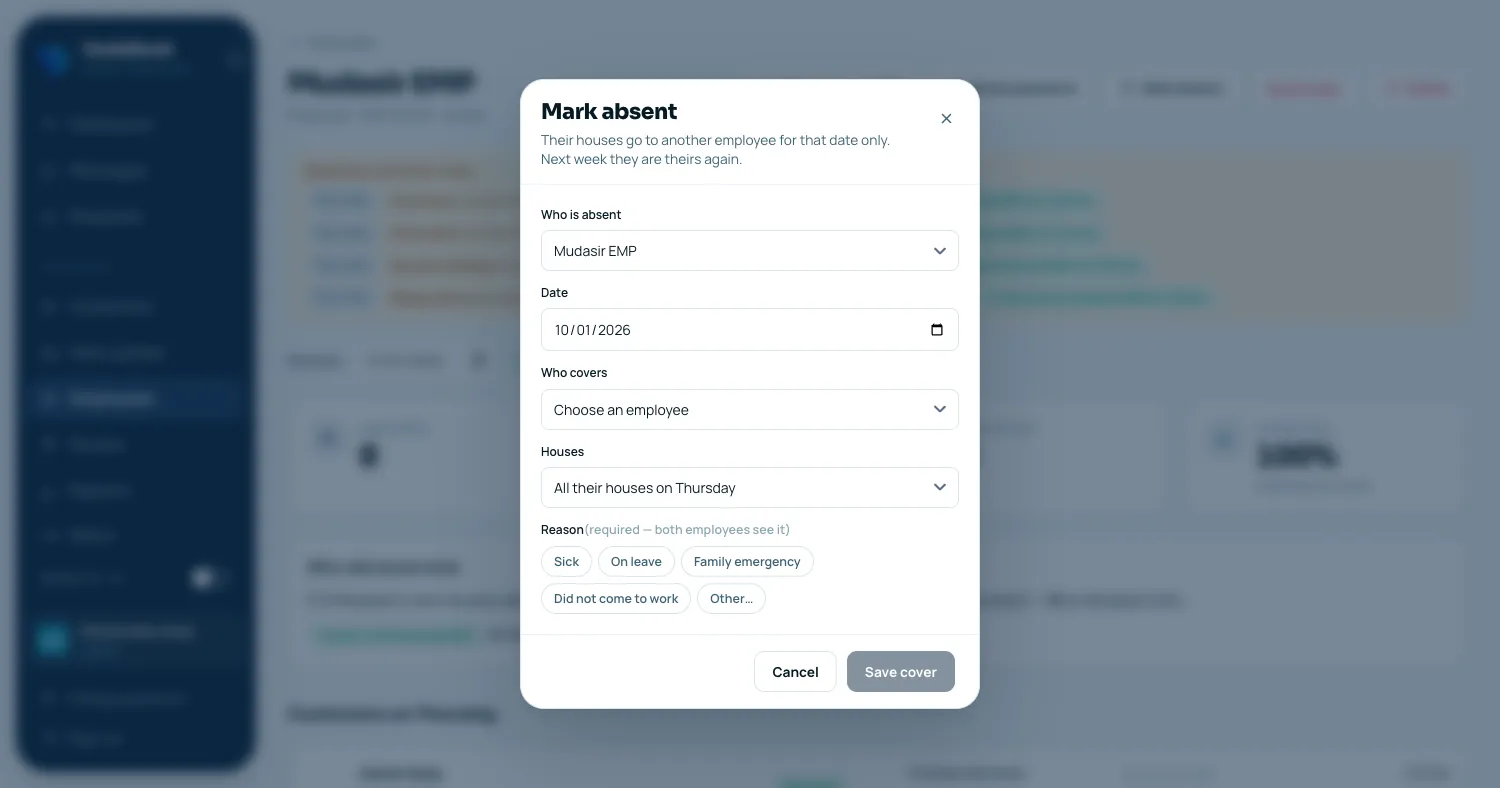
- Employee page → Mark absent. Pick the date, who covers, and a reason (Sick, On leave…). Their houses go to the other employee for that date only; next week they are theirs again.
- A few houses were not reached
- Employee page → Give N not delivered to another employee, or "Give to another employee" on one house. Only the houses you tick move, for that day, with a reason. It is not an absence — they keep the rest of their round.
- A house moves for good
- Open the route and change the employee next to the house, or use Hand over to move all of one employee’s houses on that route to someone else.
- A customer needs more water the same day
- A house can only be delivered once a day by an employee. On the employee page, point at the delivered house and press "Needs more today?" — the employee then sees Deliver again for that one house.
- Who delivered what
- The employee page says it in one line: their own houses, houses they took from a colleague, and houses they gave away — and who delivered each.
- The record
- Every absence and hand-over is kept under Switch record on the employee page: what moved, why, who changed it and when, and whether it was delivered or undone.
What an employee can and cannot see
- Names only
- An employee sees the customer’s name and which route it is on — never the rate, the phone number, the address book or your earnings.
- Only their round
- They can log a delivery only for houses that are theirs that day (or given to them for the day).
- A new house at the door
- Add customer on their app sends you a request with the name, token and phone. You finish it under Requests — the employee never sets a price.
- Chat with you
- One conversation with the supplier, marked "Employee" on your side. Every change to their round is written into it, so both of you have it in writing.
Every change to an employee's round — houses added, moved, an absence, an extra delivery — sends them a push and writes a line into your conversation with them. Delete an employee and their past deliveries stay in your history under their name.
Screen by screen
Swipe or use the arrows. Everything here is on the web and in the app — where a screen belongs to one side only, the label says which.
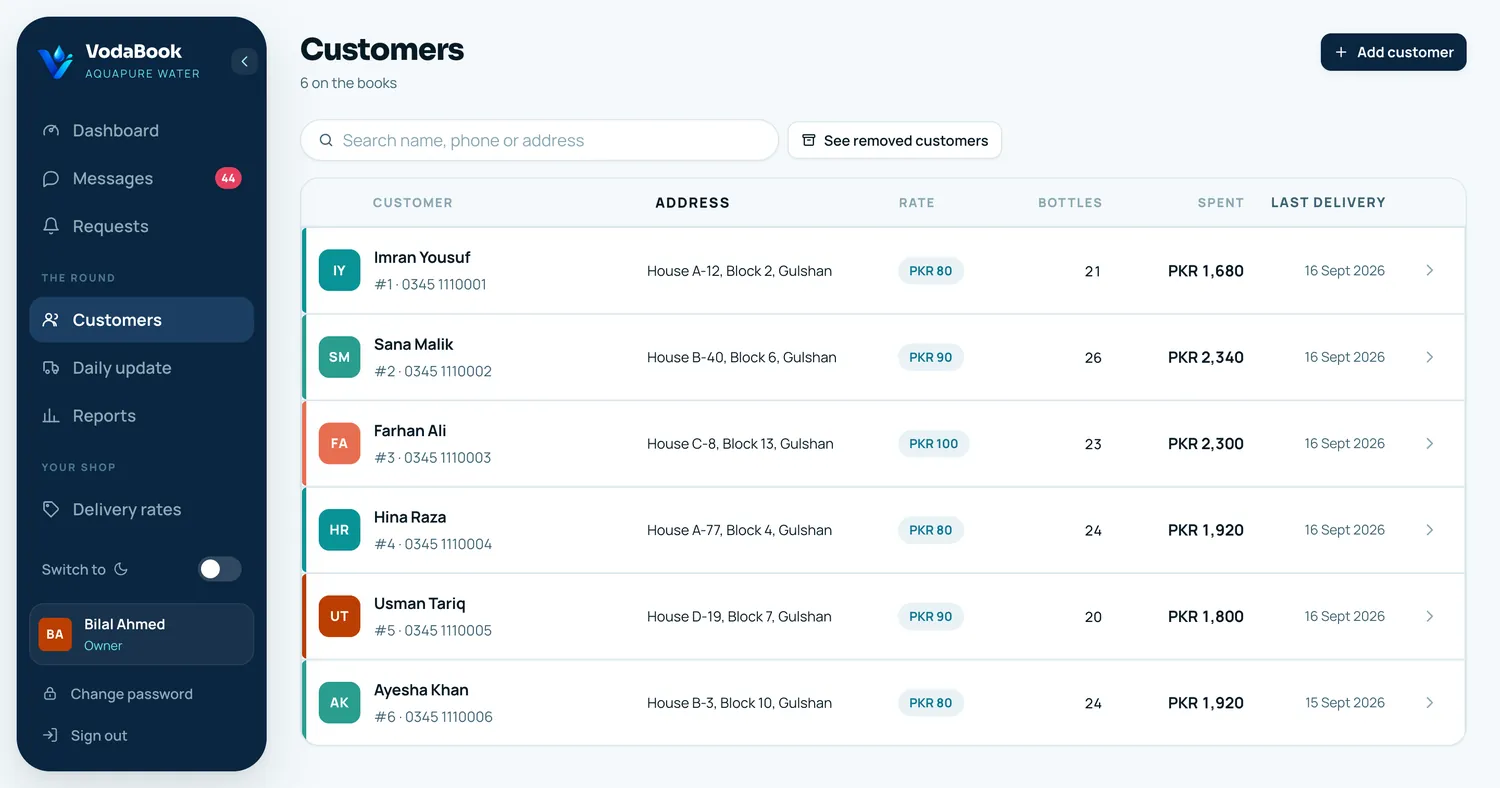
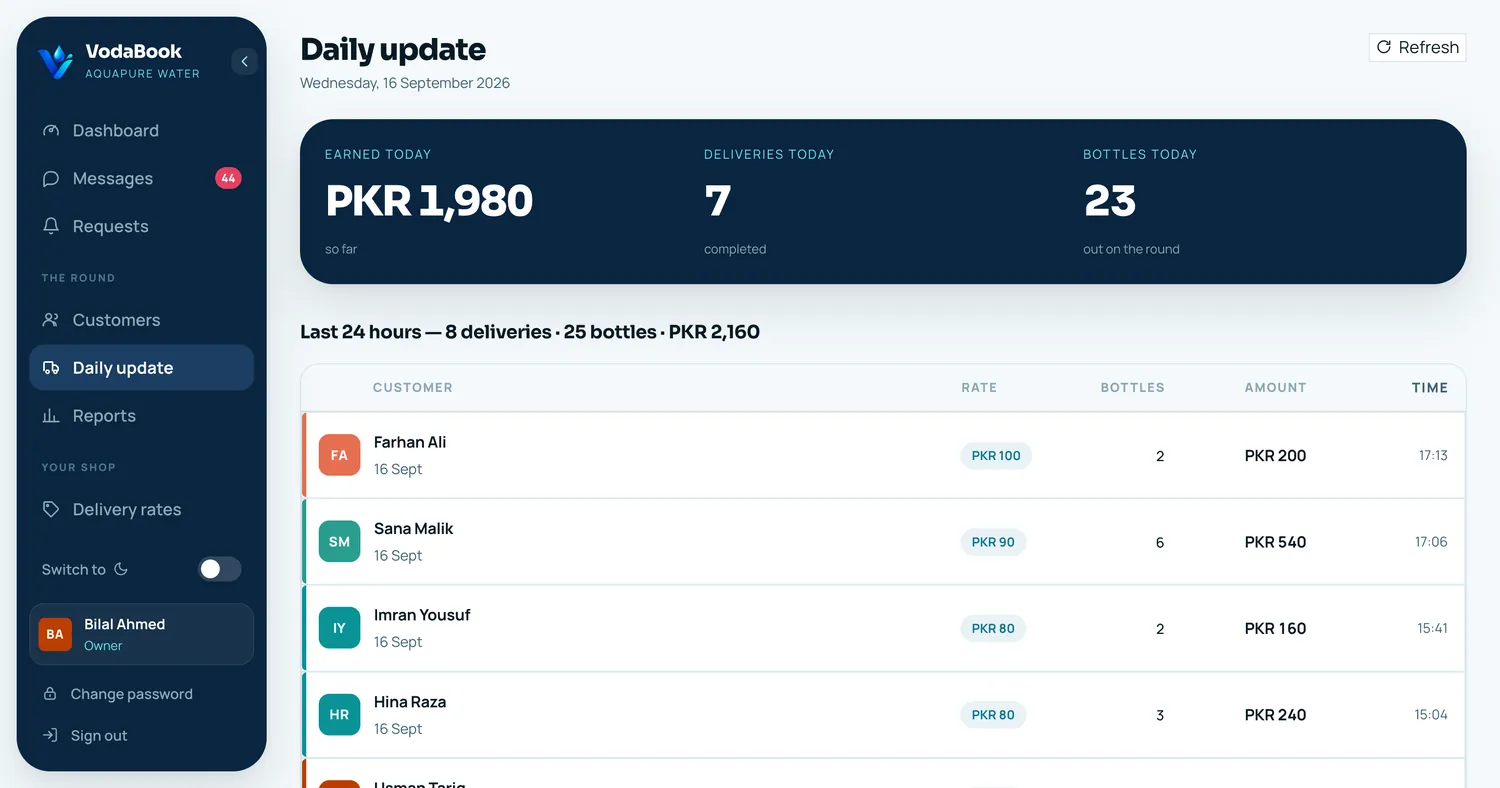
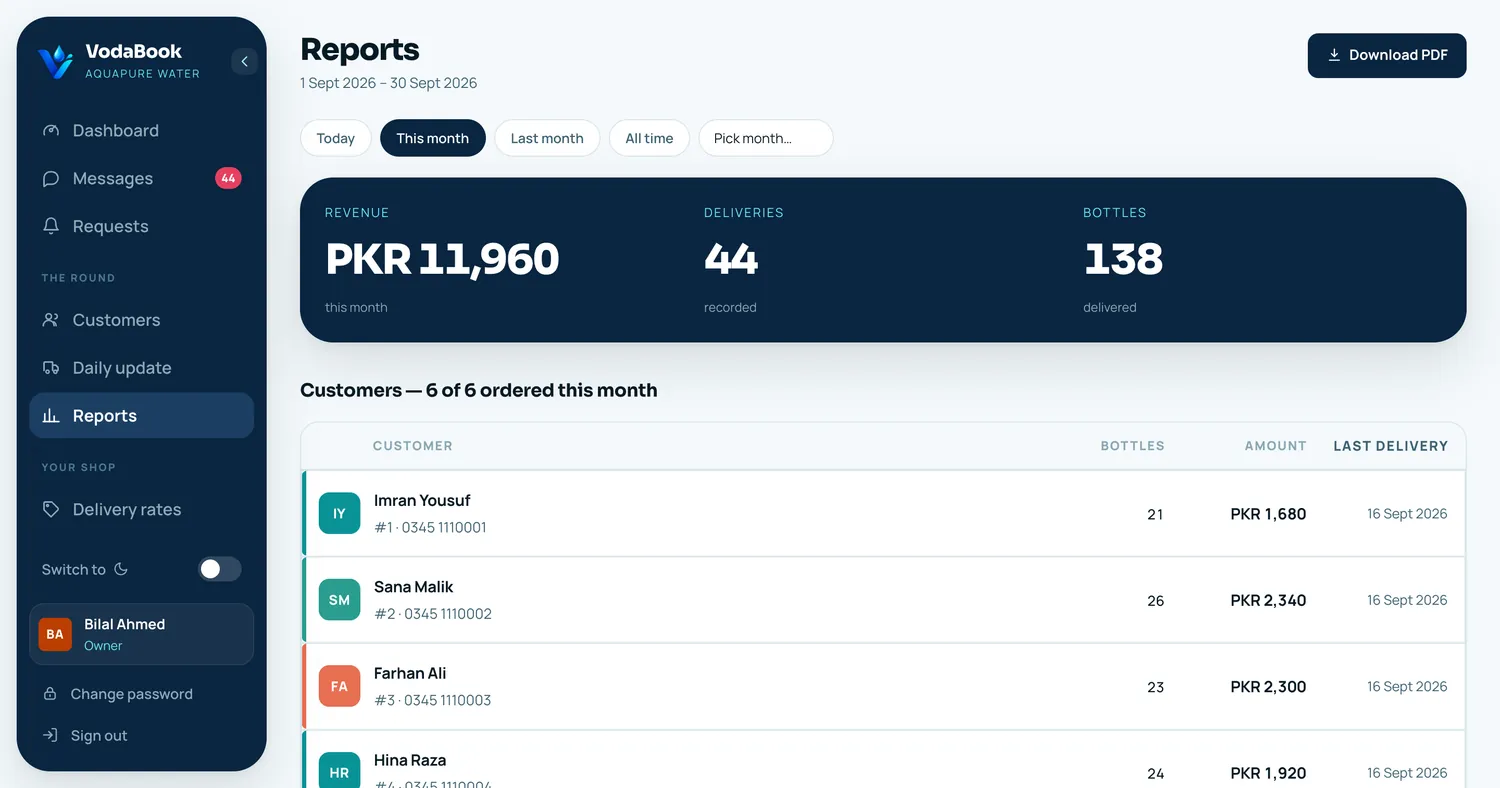
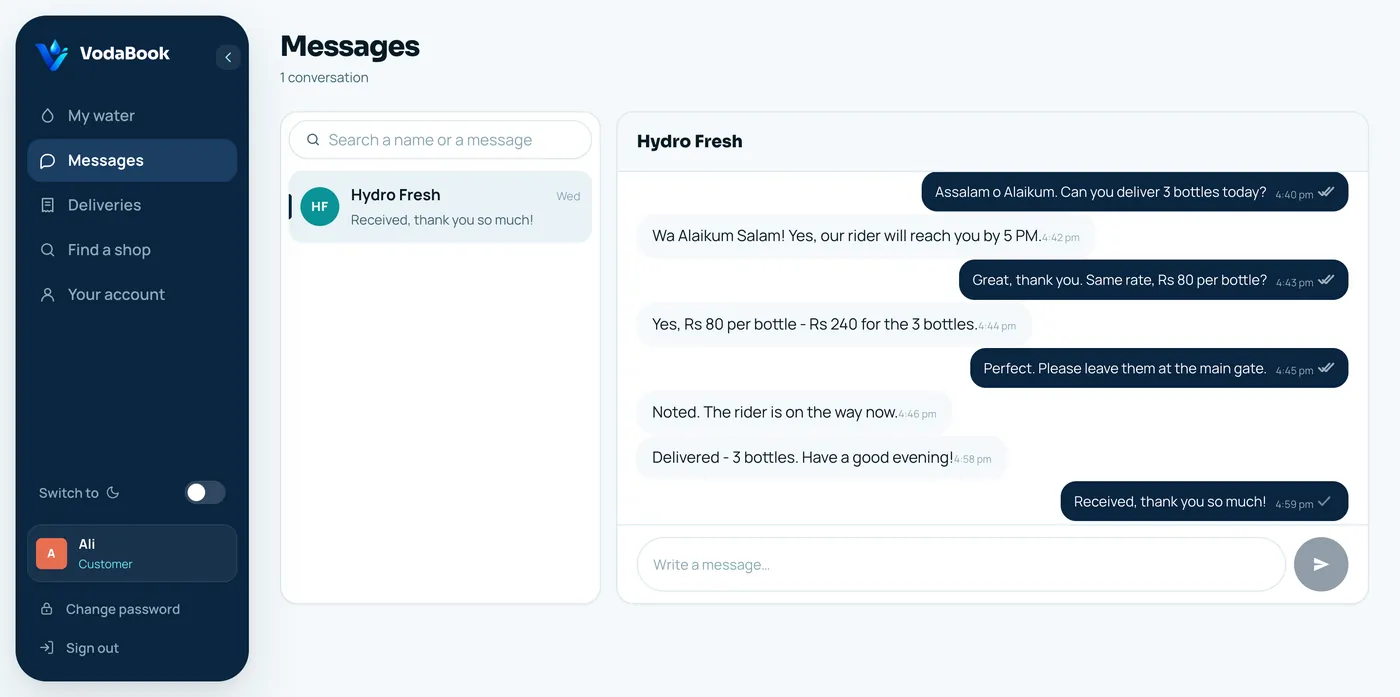
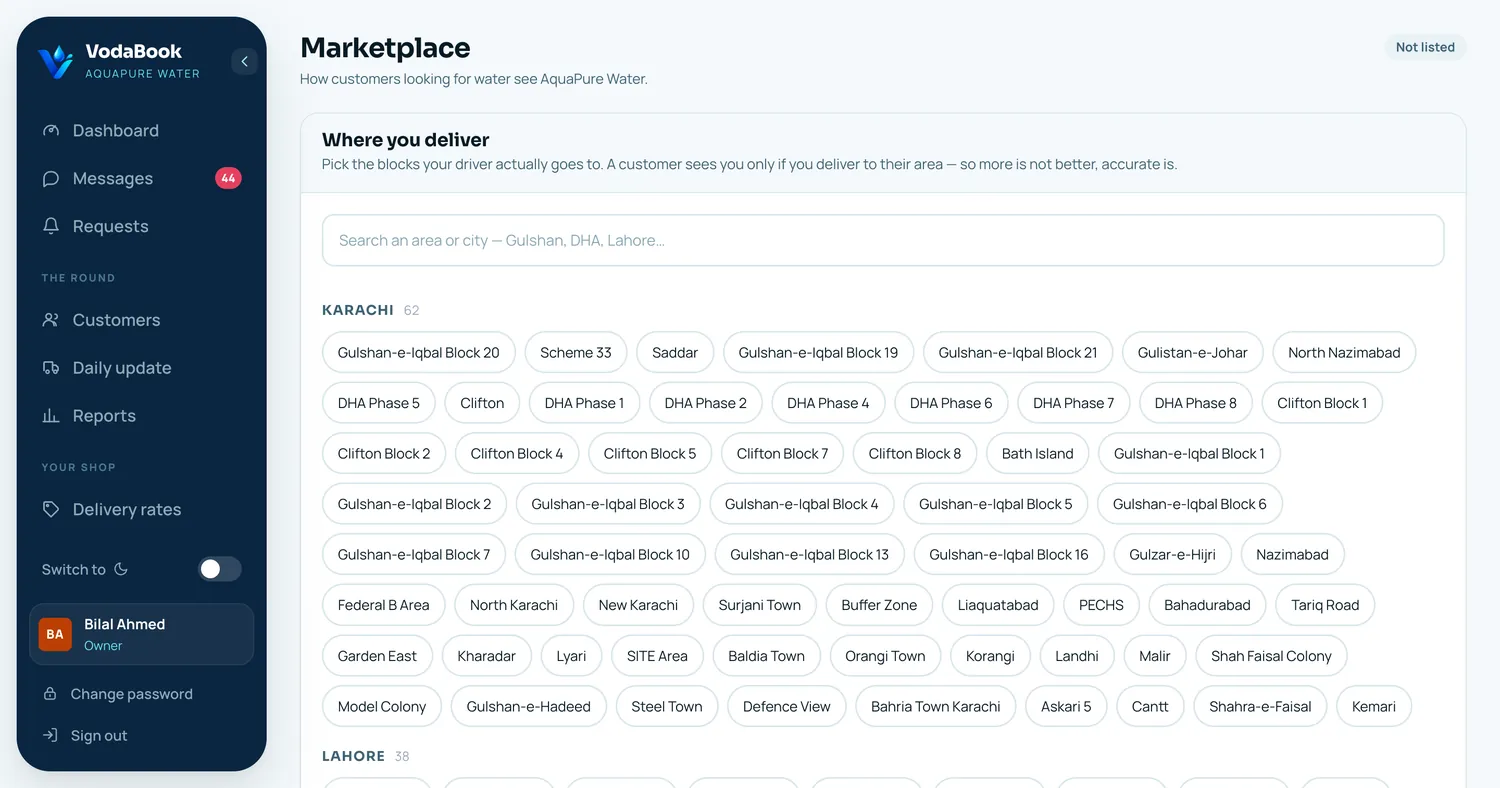
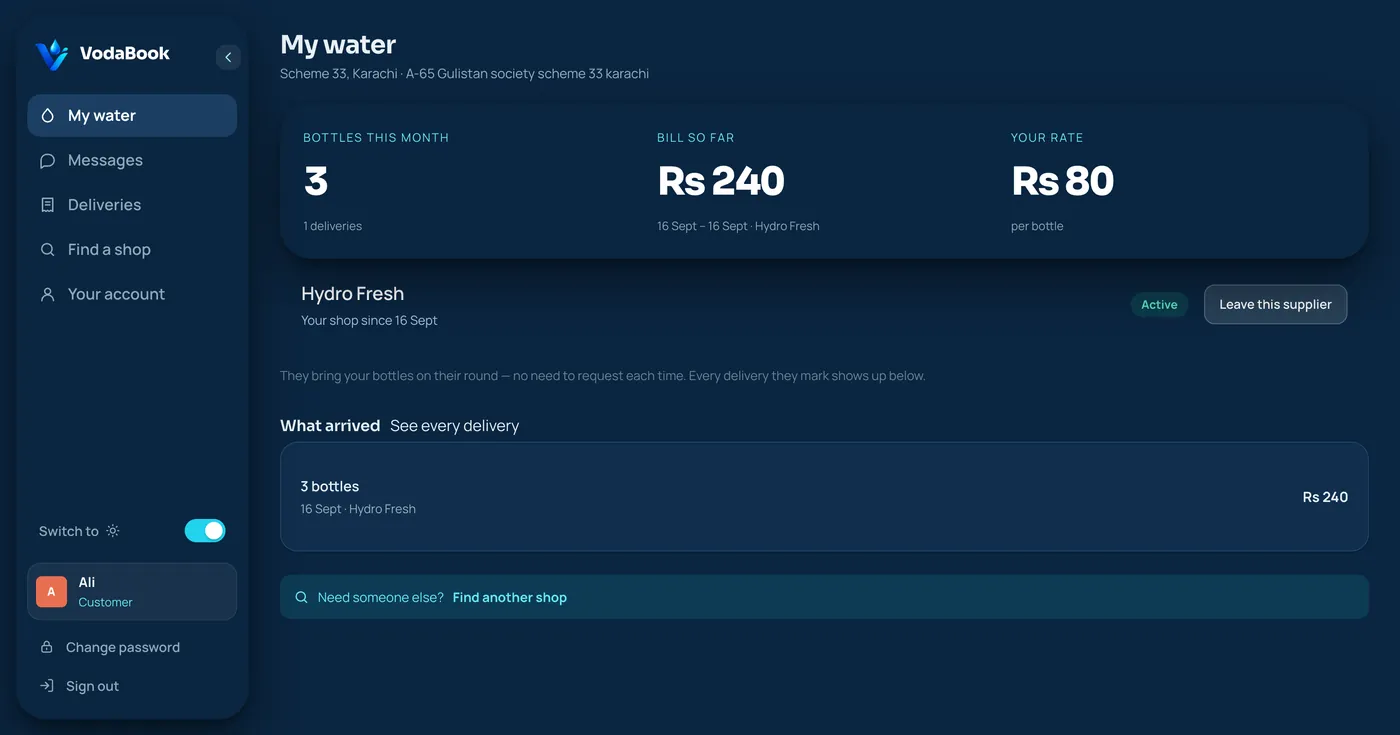
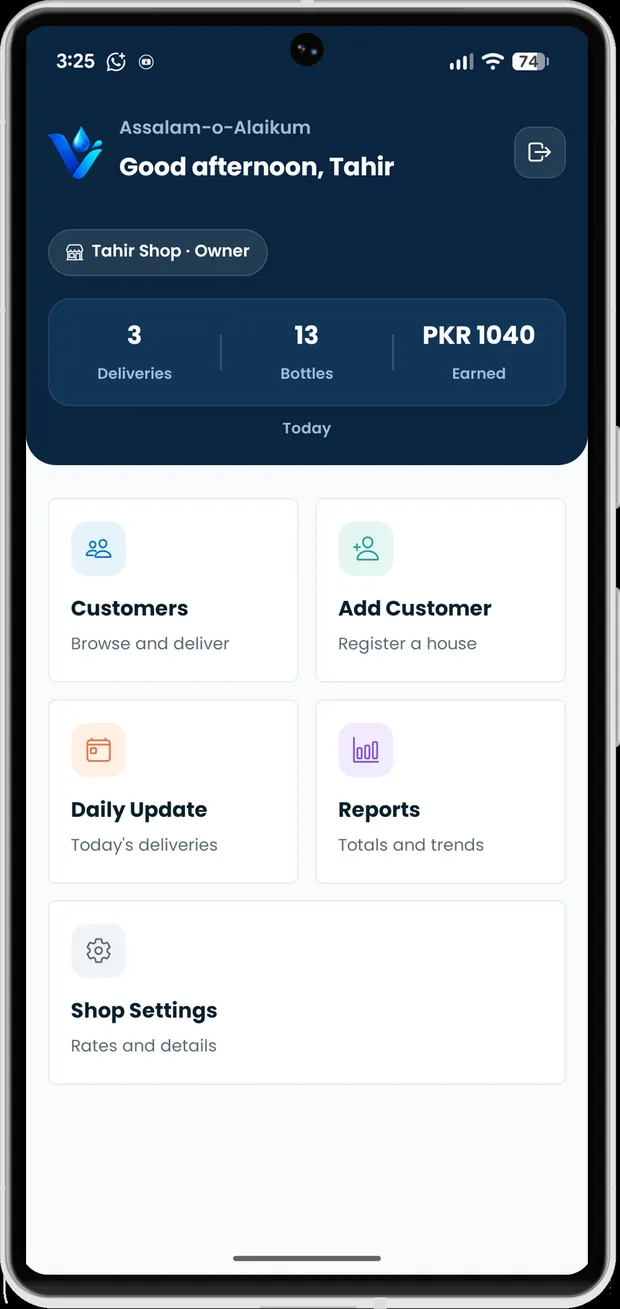
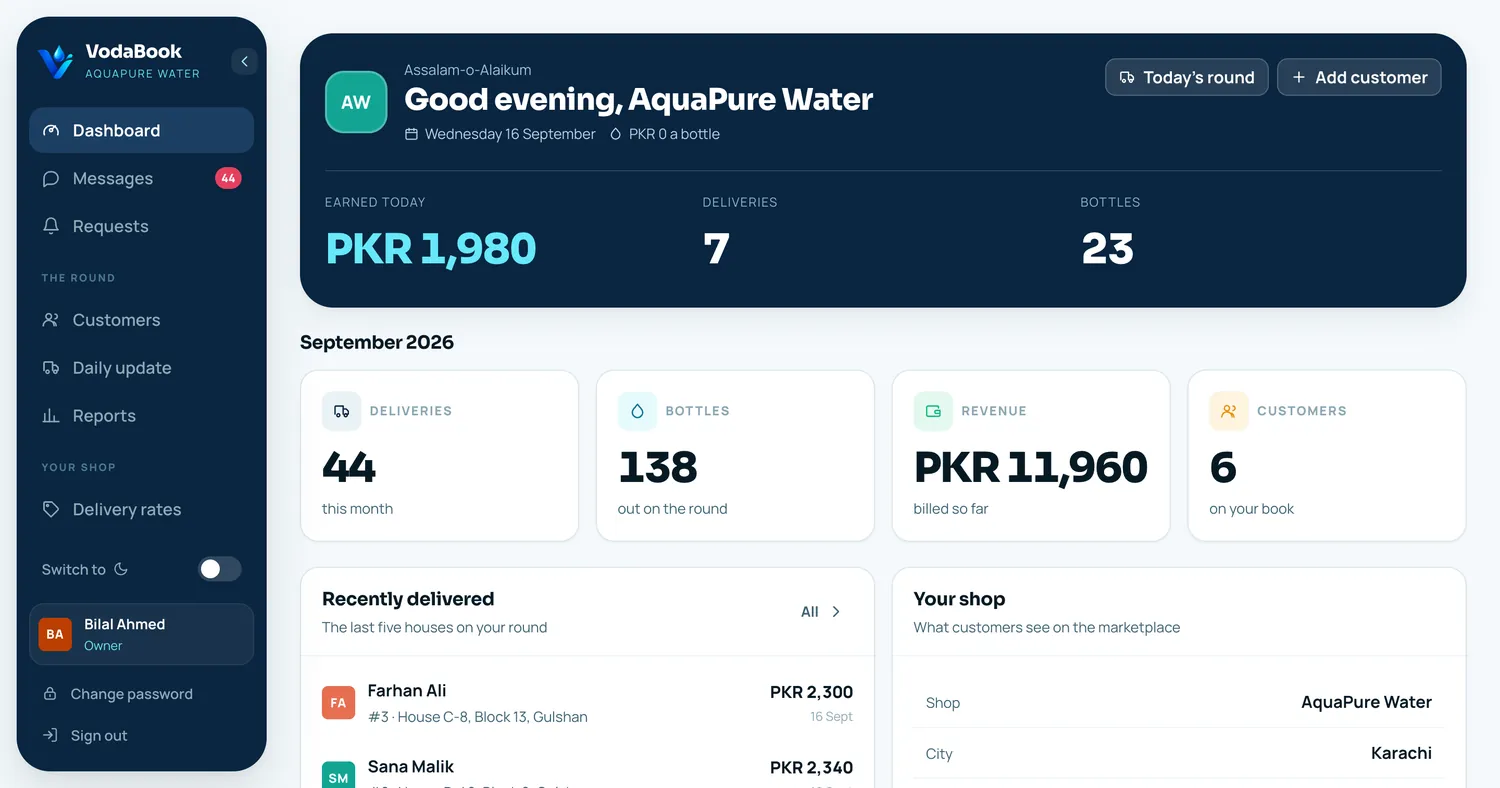
The day at a glance — bottles out, money earned, who is waiting. Everything else is one click from the rail on the left.
Worth knowing
Stuck?
Most questions are answered in the FAQs. If yours is not, contact us or email support@vodabook.com.